개발환경
[Xcode] UIKit Preview 쉽게 설정하기
miniOS
2021. 9. 30. 16:30
❗️ 버전 요구사항
- Xcode 11 이상
- macOS Catalina 이상
- iOS 13 이상
ViewController 소스파일에 Preview를 위한 코드를 삽입
import UIKit

class SignUpViewController: UIViewController {

    override func viewDidLoad() {
        super.viewDidLoad()
    }

}

#if canImport(SwiftUI) && DEBUG
import SwiftUI
@available(iOS 13.0, *)
struct presentable: UIViewRepresentable {
    func updateUIView(_ uiView: UIView, context: UIViewRepresentableContext<presentable>) {
    }

    func makeUIView(context: Context) -> UIView {
        SignUpViewController().view
    }

}
@available(iOS 13.0, *)
struct SignUpViewController_Previews: PreviewProvider {
    static var previews: some View {
        presentable()
    }
}
#endif
여기서 주의할 점은 Controller class 이름에 맞춰서 코드를 작성해야 한다는 것 입니다.
위 코드에서는 SingUpViewController 로 일치하는 것을 볼 수 있습니다.
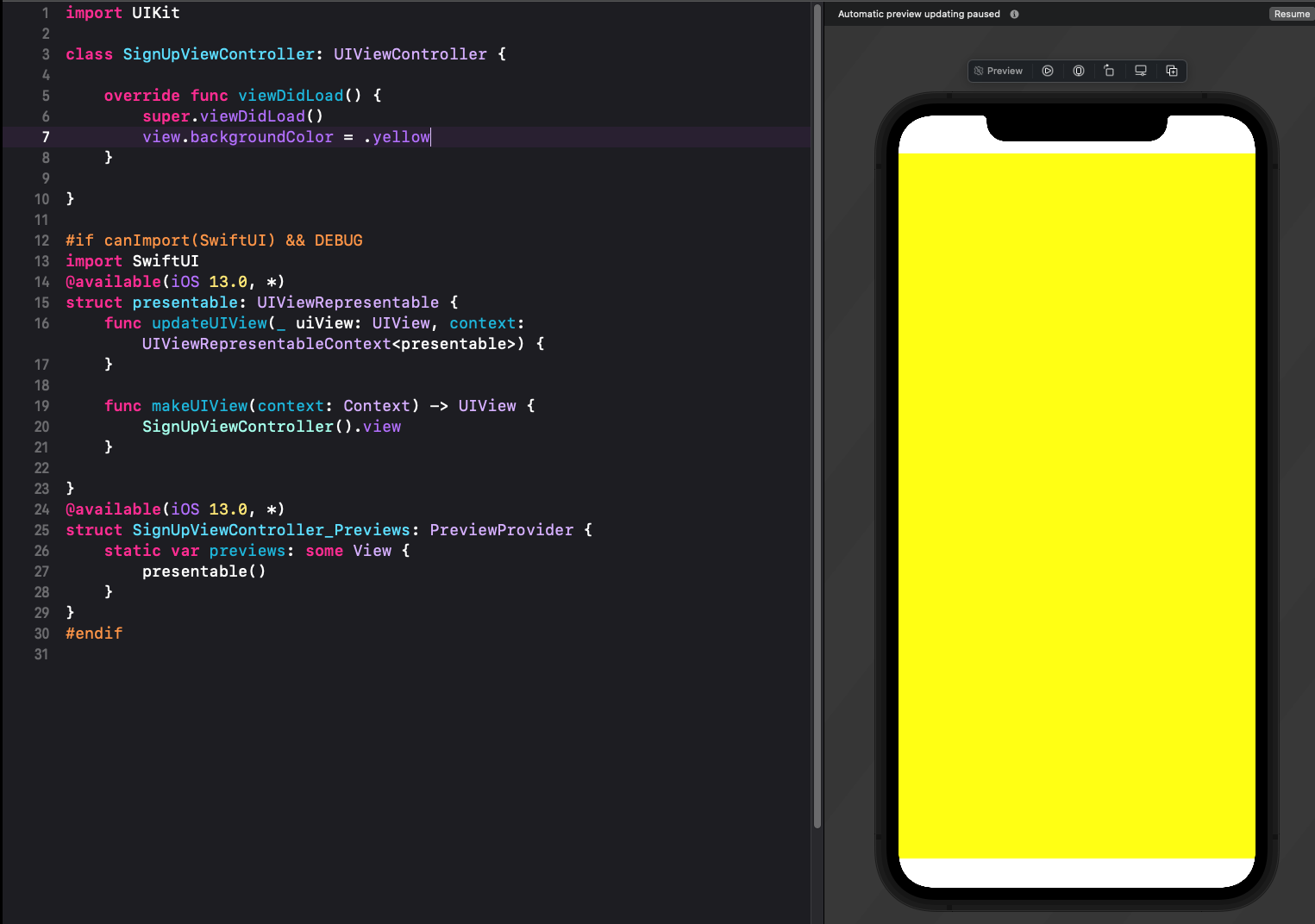
Preview 실행

Canvas 를 클릭.

Layout → Canvas on Right 클릭해서
Preview를 보기 수월하게 할 수 있습니다.
완성된 화면
주의사항
- Storyboard에서 편집한 화면은 적용되지 않습니다.
출처
https://stackoverflow.com/questions/67057597/how-to-change-xcode-preview-position-side-to-right-side
https://hryang.tistory.com/8